Install notes · Install notes
How to install Rollex11 safely, and how to tell it worked
Rollex11 isn't in any app store. What installing it involves on Android, iPhone and Windows, what the lobby looks like when it's worked, and the warning signs of a fake.
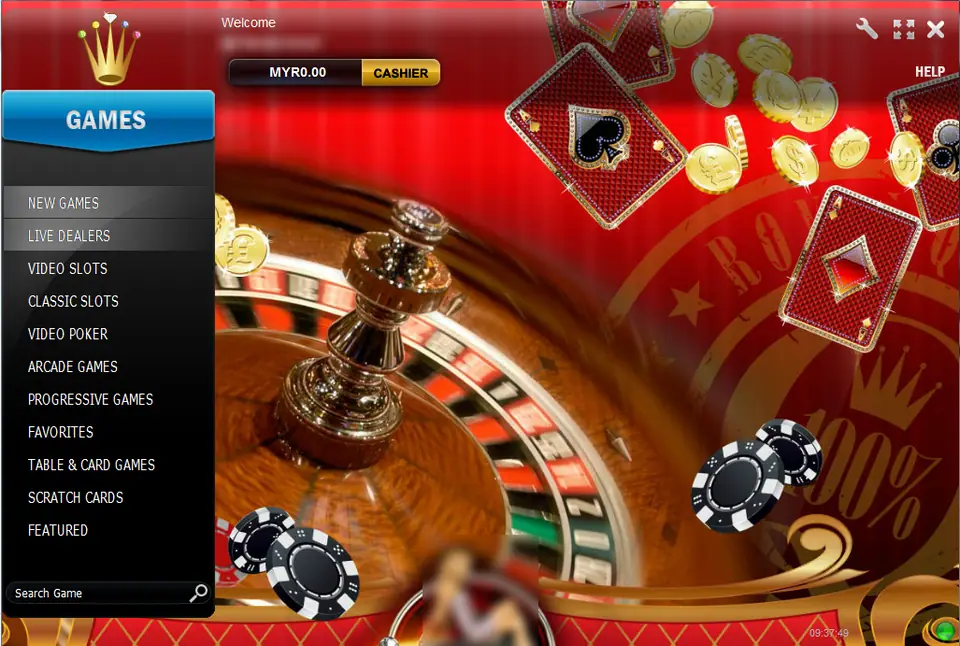
When Rollex11 is installed and working, the first thing you see after logging in is a red lobby with a gold crown in the top-left corner, a GAMES menu down the left side, and a line reading "Welcome" with your login code under it. Next to that is your balance in MYR and a gold CASHIER button. That's the finish line, and it's the screenshot at the top of this page. The rest of this page is how to get there without installing something you didn't mean to.
We don't host or link any Rollex11 files. Ask for the current link from the provider who gave you your game ID. They're the only source worth trusting, because they're the one who has to pay you later.
What the old page offered
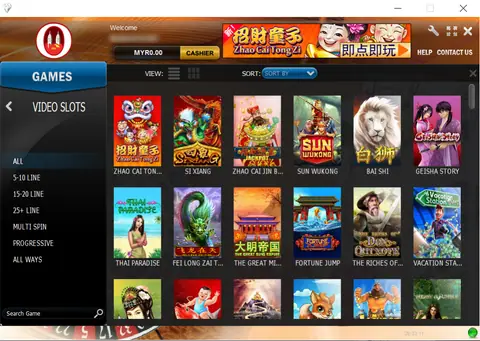
The old version of this page was the most visited on the site, and it had no instructions at all. It had four buttons: Android (Slot Only), Android (Live Games), Windows Computer and Play In Online. Those links are dead now. The choice they offered still makes sense, though:
- Android slot app: the one you want for everything on our Rollex11 games pages.
- Android live app: live-dealer tables only. Skip it unless that's what you play.
- Windows client: a PC program, which is where the lobby screenshot at the top comes from.
- Browser play: the operator's own site. We don't link it.
There was no iPhone button.
Android, step by step
Because the file doesn't come from Google Play, Android stops you the first time.
- Open the downloaded file. Android says your browser (or file manager) isn't allowed to install unknown apps.
- Tap Settings, turn on Allow from this source, and go back.
- Tap Install. If Play Protect says the app is unrecognised, that's normal for anything outside the store. If it says the app is harmful, stop.
- Go to Settings > Apps > Special app access > Install unknown apps and turn the permission off again for that browser.
Now check what the app asks for when it first opens. A casino lobby needs internet and possibly storage. It has no reason to read your SMS or contacts, see your call log, or act as an accessibility service. If it asks for any of those, uninstall it.
For updates, install the new file over the old one. If Android refuses because the signature doesn't match, don't force it. Either the file has been changed or it isn't from the same source. Get a clean link from your provider.
iPhone
When providers do hand out iPhone builds of apps like Rollex11, they're signed with an enterprise certificate, not sold through the App Store. After installing, the first tap shows Untrusted Enterprise Developer. Open Settings > General > VPN & Device Management, tap the company under Enterprise App and choose Trust. The company name won't say Rollex; it's whoever the certificate was issued to.
Apple revokes these certificates when it finds them, and the app then stops opening on every phone at once. Your credit is safe on your ID. Delete the icon, remove the old company from Device Management, and ask your provider for the new build. The old page's split between older and newer iPhones is history: current iOS only runs 64-bit apps.
The Windows client
The PC client looks like the screenshot: GAMES menu with New Games, Live Dealers, Video Slots, Classic Slots, Video Poker, Arcade Games, Progressive Games, Favorites, Table & Card Games, Scratch Cards and Featured, a Search Game box at the bottom, and settings, full-screen and close icons top right. If you're offered a PC version today, scan the installer first, and don't run it on the computer you use for online banking.
Once you're in
The real app only ever asks for your game ID and password. Anything that wants your bank login, a TAC or an OTP is not Rollex11.
For what to play first, the Rollex11 overview explains how accounts and cuci work and tours the games. Good first stops are Jackpot Giant (read the max-line-bet rule before you chase its counter), Highway Kings Pro with its paytable on screen, Sugar Land, Buffalo Blitz and King of Olympus. Install pages for the other apps are under install notes. And if you don't have an account yet, get a Rollex11 game ID first; the app does nothing without one.
Never share a bank TAC or OTP with anyone, including someone offering to help you install. 18+ only; online gambling is restricted in Malaysia, so set a limit before your first top-up and read responsible gaming.
Questions people ask
Where can I download Rollex11 safely?
It isn't in Google Play or the App Store, and we don't host or link the files. Get the current link from the provider who issued your game ID, and nowhere else. A file from a search result or a stranger can look the same and still be modified.
Do I need both Rollex11 Android apps?
No. The old page offered a slot app and a separate live-games app. The slots on our Rollex11 pages, like Jackpot Giant or King of Olympus, are in the slot app. The live one was only for live-dealer tables.
My Rollex11 app stopped opening. Is my money gone?
No. Your balance is stored on your game ID, not on the phone. On iPhone a dead app usually means Apple revoked the certificate; on Android it's usually an outdated build. Delete it, get the current version from your provider, and log in again.
Real-money games; online gambling is restricted in Malaysia. Never top up money you need, and stop when it stops being fun. Responsible gaming.